
Troubleshooting
BOOX Won't Turn On or Is Frozen: What to Try First
A frozen or unresponsive BOOX is usually recoverable in under a minute. The force restart, the charging checks that catch most cases, and flat battery versus fault.
A BOOX that will not respond is alarming, and it is almost always fixable in a couple of minutes. Work through these in order. Most devices come back at step two.
First, understand what you are looking at
E Ink holds its last image with no power whatsoever. A device that has crashed, run flat or switched off completely still shows whatever was on the screen when it stopped.
This trips up nearly everyone. The page you can see tells you nothing about whether the device is on. Do not judge from the picture, judge from whether it responds to input.
Step 1: Rule out the charger
Before assuming the device is at fault, eliminate the boring explanations. Weak cables and underpowered USB ports account for a lot of "dead" devices.
- Use a different USB-C cable. Charge-only cables and worn cables are a common culprit.
- Plug into a wall adapter rather than a computer port or a hub.
- Leave it for at least 30 minutes before deciding anything. A deeply discharged battery may show no indicator at all for the first several minutes.
If the device has been in a cold car overnight, let it reach room temperature first. Lithium batteries refuse to charge when cold, and E Ink is sluggish in the cold too.
Step 2: Force restart
This resolves the majority of frozen devices.
- Press and hold the power button for 20 to 30 seconds.
- Do not let go early. The screen may show nothing at all for most of that time.
- Release and wait. The startup logo should appear.
Nothing is erased by this. It is the equivalent of pulling the plug and starting again.
If the first attempt does nothing, plug the device in and try again while it is charging. A battery too flat to boot can still be too flat after a few minutes on the cable.
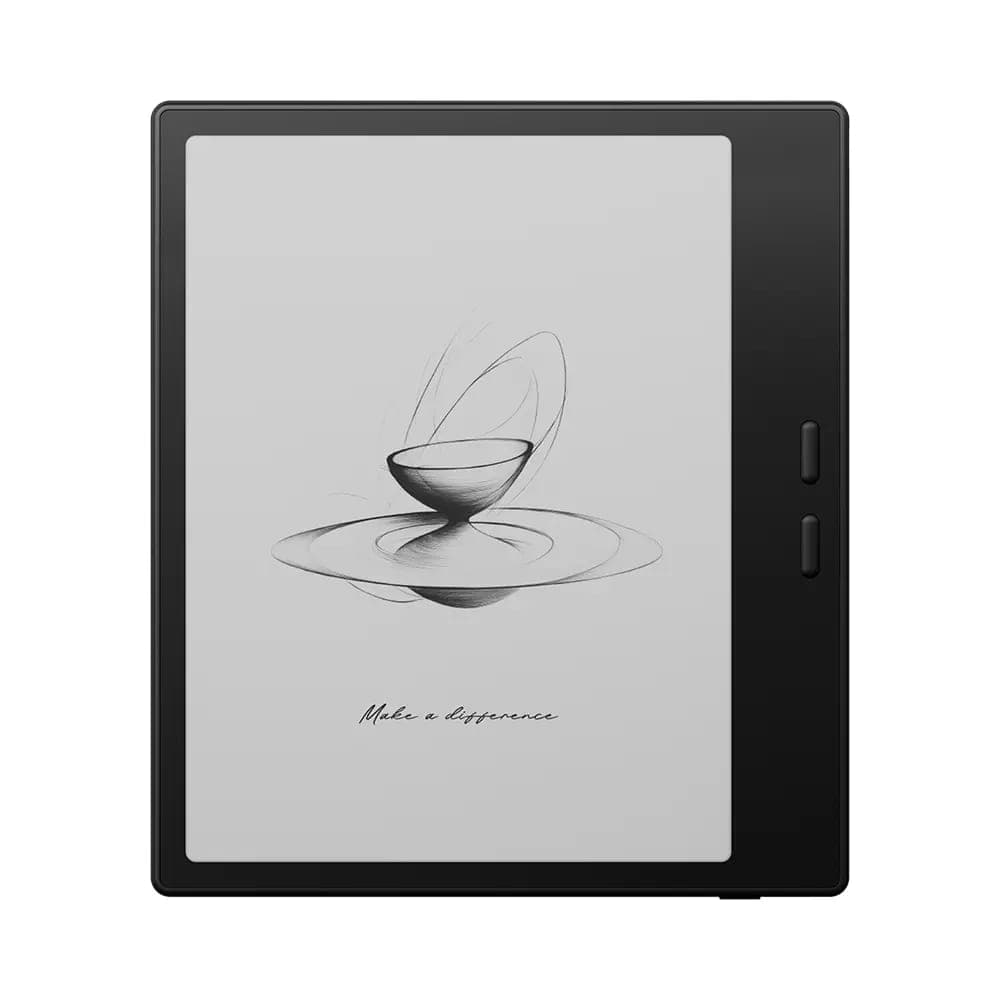 BOOX 7" Go 7 ( Black )$342.99
Step 3: Look for the reset pinhole
Some BOOX models have a small recessed reset hole, usually near the USB-C port. If your model has one, press it gently with a SIM tool or a straightened paperclip.
Not every model includes one, and it is easy to mistake a microphone opening for a reset hole. If you are not certain what you are looking at, stop and ask us rather than pushing something into a microphone port.
Step 4: Boot into recovery
If the device powers on but hangs at the logo, or restarts in a loop, there is a recovery mode reached by holding a button combination at power-on. The combination differs by model and firmware, which is exactly why we are not going to guess at it here. Getting it wrong on some devices lands you in a factory reset you did not want.
At this point, contact us with your model name. We will look up the correct combination for that device rather than have you experiment.
When it is genuinely a fault
Escalate rather than keep trying if any of these are true:
- The device gets warm on the charger but never boots.
- It boots, then dies within seconds, repeatedly, while plugged in.
- The screen shows a permanently broken image, such as a hard line or a shattered pattern, that survives a restart. That is physical panel damage, and no amount of restarting will help.
- There is visible swelling anywhere in the case. Stop charging it immediately and get in touch. A swollen battery is a safety issue, not a repair to attempt.
Every new device we sell carries the full manufacturer warranty, which covers genuine hardware faults. Send us your order details and a photo of what the screen is doing and we will help you through the manufacturer's process.
Preventing the next one
Most freezes trace back to an app misbehaving rather than the device itself. If yours locks up repeatedly:
- Note which app is open when it happens. A single badly behaved Android app is the usual cause.
- Keep firmware current, since stability fixes arrive that way. Our maintenance guide covers updates alongside battery care.
- Leave some free storage. A device with almost none behaves unpredictably.
We would rather you asked
If you are unsure at any point, stop and get in touch instead of trying something irreversible. We are a Canadian dealer with a real showroom in Oakville, and talking someone through a frozen device takes us a few minutes. Our FAQ covers warranty and support questions more broadly.
Common questions
- How do I force restart a BOOX device?
- Press and hold the power button for about 20 to 30 seconds without letting go. The screen may not react at all until the device restarts. This is a hardware-level reset, it does not erase anything, and it resolves the large majority of frozen devices.
- My BOOX screen still shows a page but nothing responds. Is it broken?
- Almost certainly not. E Ink holds the last image with no power at all, so a device that is off, crashed or out of battery still displays whatever was on screen. A static image is not a sign of life, and not a sign of damage either.
- How long should I charge a completely dead BOOX before it responds?
- Give it at least 30 minutes on a known-good cable and wall adapter before concluding anything. A deeply discharged battery can take that long before it will even show a charging indicator.
- Will a force restart delete my books or notes?
- No. A force restart is the equivalent of cutting power and starting again. It does not touch your files. A factory reset does erase data, but that is a different action taken from inside the settings menu.
Related guides
Still stuck?
We are a Canadian BOOX dealer with a real showroom in Oakville. If a guide did not solve it, tell us what your device is doing and we will help you work out whether it is a setting or a fault.