
Getting started
Setting Up a New BOOX: The First 20 Minutes
The setup order that saves trouble later: firmware first, then front light and refresh, then apps and your library. Plus the settings worth changing straight away.
A BOOX is an Android device with an E Ink screen, which means the first twenty minutes shape how well it works for the next few years. This is the order we use when setting one up on the counter at our showroom.
1. Charge it while you read this
New devices arrive partly charged. Plug it in now so a low battery does not interrupt a firmware update later.
2. Firmware first, before anything else
Connect to Wi-Fi, then find the firmware update check in Settings and run it. Do this before installing apps or copying files.
The reason is simple: an update can reset display settings and change app behaviour. Update first and you tune the device once. Update after a full afternoon of configuration and you may find yourself redoing parts of it.
3. Decide about an Onyx account
You will be offered one. It is genuinely optional and the device is fully functional without it.
Sign in if you want Onyx's cloud note sync across devices, or Send to BOOX for pushing files from a browser anywhere. Skip it if you plan to move files over a cable or local Wi-Fi and keep notes on the device. You can add it later either way.
4. Set the front light before you judge the screen
Devices with warm and cold lighting ship with cold at a level that many people find clinical. Before deciding how the screen looks, sit somewhere you actually read and set the light there.
A useful starting point: turn the front light off entirely in a well-lit room. E Ink is reflective, so it may look better with no light at all than you expect. Then add warm light for evenings, and keep the level lower than instinct suggests. This is also the largest single draw on the battery, as our battery guide explains.
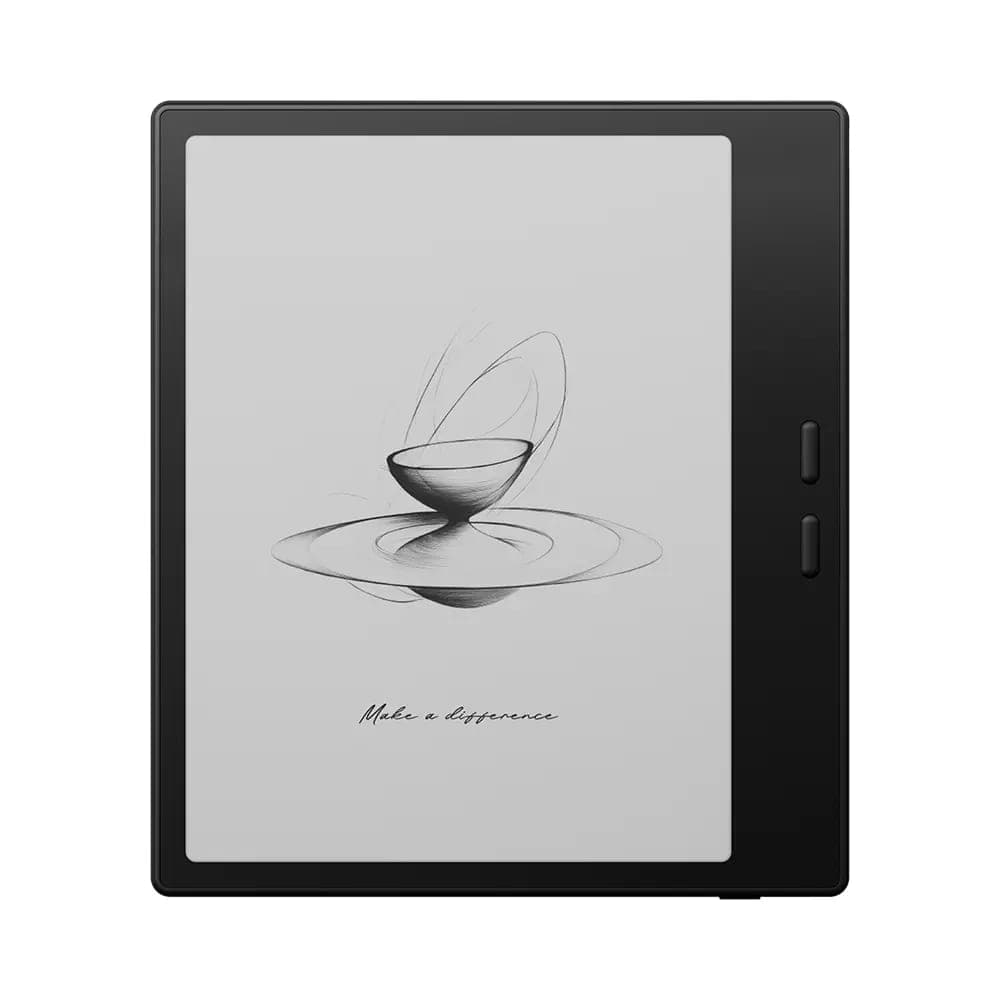 BOOX 7" Go 7 ( Black )$342.99
5. Set a sensible refresh mode
Leave the device on its highest-quality refresh mode for reading. Change it per app rather than globally, once you have apps installed.
If the black flash of a full refresh bothers you, stretch its interval out now so you are not distracted by it while you set everything else up. Our refresh modes guide covers what each mode is for.
6. Install only what you will use
This is the step where an E Ink device gets ruined. Every Android app you install is another thing waking the device, syncing in the background and draining a battery designed for weeks of idle.
Enable Google Play in Settings if you want it, sign in, and expect certification with Google to take a while before Play behaves properly. Then install deliberately. A reading app, perhaps a cloud client, and stop. Resist recreating your phone.
7. Get your library on
With the device configured, copy your books across. BOOXDrop over local Wi-Fi is the quickest route for a handful of files and needs no cable or account. For a large collection, use the USB cable. Our transfer guide covers all five methods and when each makes sense.
8. Optimise your reading app
Open the app you will actually read in, then set its display options individually: highest-quality refresh, and bleach on if the background looks grey rather than white. Two minutes here makes more difference to daily reading than anything else on this list.
Settings worth changing straight away
- Sleep timer: shorten it. A device awake in your bag helps nobody.
- Wi-Fi: turn it off when you are only reading.
- Screensaver: a static image, not an animated one.
- Gestures: learn the swipe that opens the Control Center. It is where refresh modes and the front light live, and you will use it constantly.
About cases and protectors
A case that covers the screen is worth having, particularly for a device that travels. E Ink panels are glass under a plastic layer and they do not survive a hard corner impact.
Screen protectors are a different matter. The surface is already matte and textured, and adding a layer tends to dull both writing feel and sharpness. Most people are happier without one.
 BOOX Note Air5 C 10.3"$699.99
If something looks wrong
Faint ghosting between page turns is normal on every E Ink device and not a defect. Our article on spots and ghosting explains how to tell ordinary residue from a genuine panel problem, and what to do if the device freezes covers the unresponsive case.
We will set it up with you
If you would rather not do this alone, bring the device to our Oakville showroom and we will go through it together, or buy from us and we will hand it over already updated. We are a Canadian BOOX dealer and every new device carries the full manufacturer warranty.
Common questions
- Do I need an Onyx account to use a BOOX?
- No. The device works fully without one. An account only adds Onyx's own cloud services, such as syncing notes between devices and using Send to BOOX. You can skip it during setup and add it later if you want those features.
- Should I update the firmware before doing anything else?
- Yes. Update first, before installing apps or copying your library across. Updates can change display settings and app behaviour, so doing it first means you tune the device once instead of twice.
- Can I install Google Play on a BOOX?
- Yes. There is a Google Play option in Settings that you enable and then sign in to. Certification with Google can take a few minutes to a few hours before Play works properly, which is normal and not a fault.
- Does a screen protector make sense on an E Ink device?
- Usually not. E Ink surfaces are already matte and textured, and a protector adds a layer between the stylus and the panel that can dull writing feel and sharpness. Most owners are better off with a case that covers the screen when closed.
Related guides
Still stuck?
We are a Canadian BOOX dealer with a real showroom in Oakville. If a guide did not solve it, tell us what your device is doing and we will help you work out whether it is a setting or a fault.