
Getting started
How to Install Apps on a BOOX (Google Play and Sideloading)
Enabling the Play Store, what the 'device not certified' wait means, installing APKs directly, and which kinds of app are worth putting on an E Ink screen at all.
A BOOX runs Android, which is exactly why people choose one over a closed e-reader. It is also the fastest way to ruin one. Here is how to install what you want, and a straight answer about what is worth installing.
Enabling Google Play
Google services ship disabled. Turning them on is a switch, not a hack.
- Open Settings and find the Google Play or Google Services section. The exact wording moves between firmware versions.
- Turn Play on. The device will likely restart.
- Sign in with your Google account.
Then wait. This next part confuses almost everyone.
The "device not certified" wait
After you first sign in, you may see a message saying the device is not certified, and Play may refuse to install anything.
Google registers each individual device before Play works fully. Registration happens automatically shortly after sign-in. It typically takes a few minutes and occasionally a few hours.
Nothing is broken. There is nothing to fix and no setting that speeds it up. Leave the device on Wi-Fi and come back later. If it is still refusing after a day, that is worth asking us about.
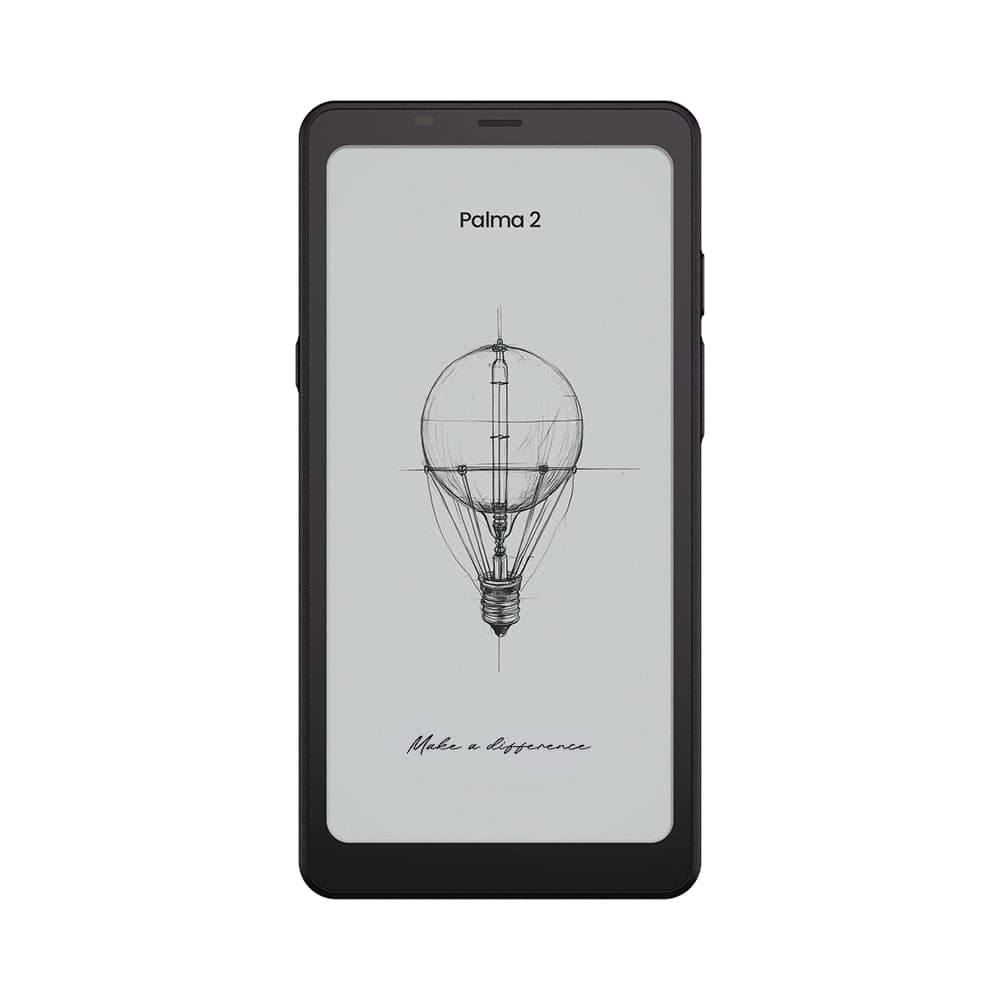 BOOX 6.13" Palma 2 - Black$349.99
Sideloading an APK
Some apps are not on Play, or are region-restricted. Because this is Android, you can install them directly.
- Download the APK in the device browser.
- Open the downloaded file. Android will ask whether to allow installation from that source, and you grant it once.
- Install.
Be selective about where APKs come from. An APK is a complete application with whatever permissions it asks for. Stick to the developer's own website or a well-known mirror. This is not the place to click the first search result. If an app requires Google Play Services to function, sideloading it will not help unless Play is already enabled.
What actually works well on E Ink
The honest filter is simple: how much of the screen changes per second?
Works genuinely well:
- Reading apps. Kindle, Kobo, Libby and the rest all run, and are the reason to install anything at all.
- Documents and PDFs.
- Note-taking apps, though the built-in Notes app is better tuned to the pen than most.
- RSS readers, email, and text-first browsing.
Runs, but you will not enjoy it:
- Video. It works in the fastest refresh mode and looks rough. E Ink was not built for motion and no setting changes that.
- Games with any animation.
- Maps, where continuous panning smears.
- Anything with an interface built around constant movement.
Set up each app after you install it
This is the step that separates a good E Ink experience from a frustrating one. Every newly installed app should get its display settings tuned individually: refresh mode, contrast, and bleach for apps with grey backgrounds.
Our refresh modes guide covers exactly which settings to change and what each does. Two minutes per app is the difference between an app that reads beautifully and one you conclude is broken.
One extra tip: prefer a light theme. Dark mode looks striking on OLED and poor on E Ink, where large black areas make ghosting far more visible.
Install less than you want to
Every app you add is another process waking the device, syncing in the background, and draining a battery designed on the assumption that the device is idle almost all the time.
The owners who complain their BOOX lasts two days are almost always the ones who recreated their phone on it. A reading app, maybe a cloud client, and stop. Our battery guide covers what to do when something is already draining it.
If you only installed a cloud client to move books across, you may not need it at all. BOOXDrop and the other transfer methods do the same job with nothing running in the background.
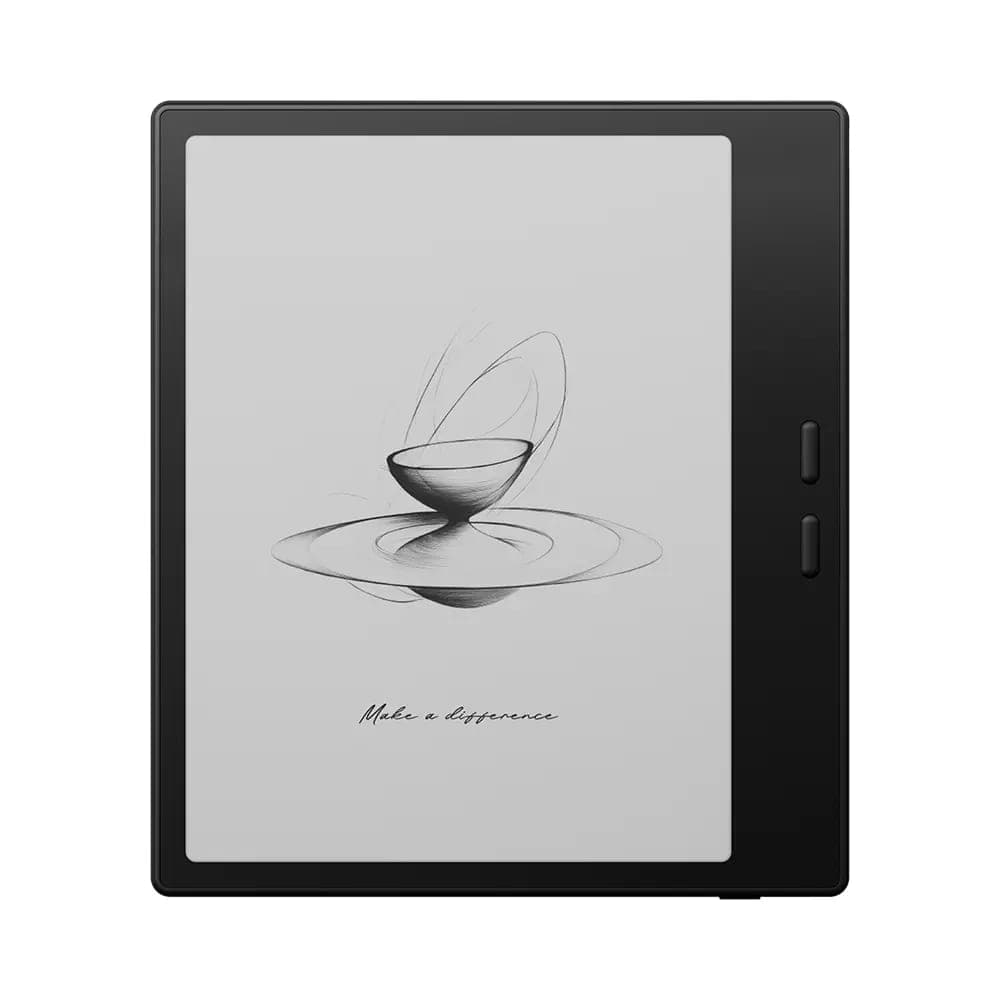 BOOX 7" Go 7 ( Black )$342.99
When an app misbehaves
- It will not install from Play: almost always the certification wait above.
- It installs but crashes on launch: it likely depends on Google Play Services. Enable Play if you have not.
- It renders unreadably: try contrast and bleach first. Some apps use custom text rendering that ignores system settings, and for those a different app is a faster fix than more tuning.
- The device freezes when it runs: note which app, and see what to try when a BOOX is frozen. A single badly behaved app is the usual cause.
Ask before you experiment
If you are unsure whether an app is worth installing, or where a download came from, ask us instead. We are a Canadian BOOX dealer with a showroom in Oakville and we will happily tell you whether something runs well on E Ink before you find out the hard way. Start at our contact page or read the FAQ.
Common questions
- Does a BOOX have the Google Play Store?
- Yes, but it is off by default. There is a Google Play switch in Settings that you enable and then sign in to. It is not preinstalled and running because BOOX ships with Google services disabled until you ask for them.
- Why does my BOOX say the device is not certified?
- Google registers each device individually before Play will work properly, and that registration happens shortly after you first sign in. The wait is usually minutes and occasionally hours. It clears on its own and is not a fault with the device.
- Can I install APK files directly on a BOOX?
- Yes. BOOX runs Android, so you can download an APK in the browser and open it to install, after allowing installation from that source. Only do this with APKs from the developer's own site or a reputable mirror, since an APK can contain anything.
- Which apps actually work well on an E Ink screen?
- Anything mostly static: reading apps, documents, note-taking, RSS, email, basic browsing. Anything animated fights the screen. Video, games and map scrolling technically run but look poor, and no display setting changes that.
Related guides
Still stuck?
We are a Canadian BOOX dealer with a real showroom in Oakville. If a guide did not solve it, tell us what your device is doing and we will help you work out whether it is a setting or a fault.