
Reading
Using Kindle, Kobo and Libby on a BOOX
Your ebook purchases and library loans all work on a BOOX through their own apps. How to install them, the settings that suit E Ink, and what DRM stops you doing.
One of the better reasons to buy a BOOX rather than a closed e-reader is that it does not care where your books came from. Kindle, Kobo, your library and your own files all work on the same device. Here is how to make each of them read properly.
Install the apps
These are ordinary Android apps. Enable Google Play in Settings, sign in, and install whichever you need. Our app installation guide covers that process, including the certification wait that catches people out.
The ones worth having:
- Kindle, for Amazon purchases.
- Kobo, for Kobo purchases.
- Libby, for public library loans. If you have a Canadian library card, this is the most valuable app on this list and it costs nothing.
- Hoopla, if your library supports it.
Install only what you will actually use. Every app is another thing waking the device in the background, and that is the fastest way to turn a device that lasts weeks into one that lasts days.
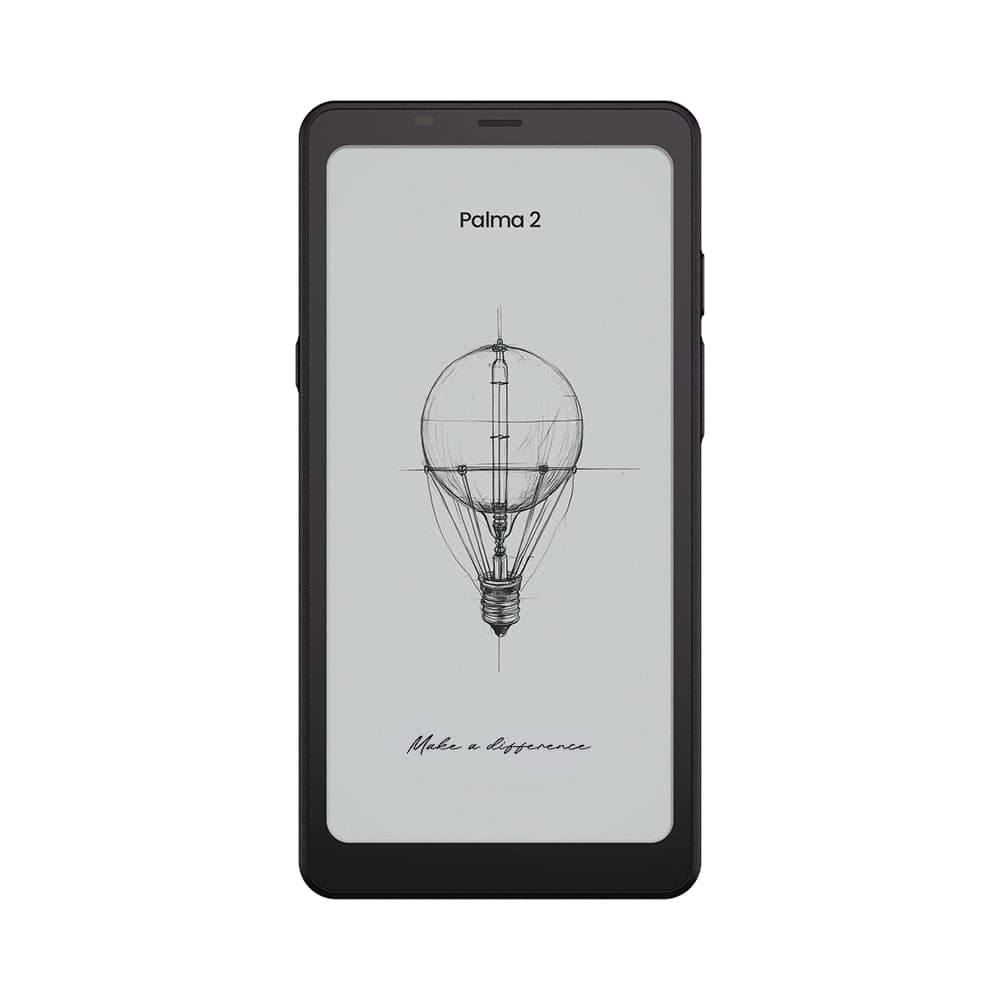 BOOX 6.13" Palma 2 - Black$349.99
Then set each one up for E Ink
This is the step that decides whether you conclude these apps are great or terrible. They are drawn for phones, and out of the box they behave like it.
For each reading app, open the per-app display settings and set:
- Refresh mode: the highest quality option. You turn a page every minute or two, so speed is worthless and sharpness is everything.
- Contrast or darkening: raise it if the app's text renders thin and grey.
- Bleach: on, if the background is off-white rather than white.
Our refresh modes guide explains what each of these does.
Then, inside the app itself:
- Turn off page-turn animations. A page curl is a lot of screen motion for no benefit, and on E Ink it smears. Every one of these apps has a setting for this.
- Use a light theme. Dark mode looks striking on a phone and poor on E Ink, where large black areas make ghosting far more visible.
- Set the font size and margins in the app, not by zooming. Our front light and comfort guide covers what to aim for.
Two minutes per app. It is the difference between an app you enjoy and one you assume is broken.
What DRM stops you doing
This is the honest limitation, and it is worth knowing before you buy rather than after.
Books bought from Kindle or Kobo are protected. They live inside that store's app and cannot be copied into the BOOX library. You cannot merge everything into one shelf, and you cannot annotate a Kindle book with the BOOX pen the way you can with your own PDF.
What you get instead is one device that opens all of them, which is still considerably better than owning three e-readers. Only your own unprotected files, such as EPUBs and PDFs you own outright, appear in the BOOX library itself. Our transfer guide covers getting those onto the device.
Libby and Canadian library cards
Worth calling out separately, because a lot of people do not realise it works.
Libby gives you your public library's ebook and audiobook collection on the device, free, with a library card. Most Canadian public libraries support it. Loans expire on their own, so nothing accumulates and nothing needs returning.
For anyone weighing an e-reader against the cost of books, this changes the arithmetic considerably.
Reading position sync
All these apps sync your position across devices, so a book you started on your phone opens where you left off. That syncing needs Wi-Fi.
The habit that works: turn Wi-Fi on when you open the app, let it sync, then turn it off for the reading session. You keep the sync and avoid the background drain. See our battery guide for why that matters more on E Ink than on a phone.
If an app misbehaves
- It will not install: almost always the Google Play certification wait, covered in the app guide.
- It will not sync: check Wi-Fi first, then the device clock. A wrong system time breaks the secure connection and shows up as a sign-in failure. See our Wi-Fi and sync guide.
- Text renders badly even after tuning: some apps use custom text rendering that ignores system display settings. A different app for the same job is usually a faster fix than more adjustment.
- The app crashes on launch: it likely depends on Google Play Services, so enable Play if you have not.
For read-later and article reading
If a lot of your reading is saved articles rather than books, that is a slightly different setup. Our guide to read-later apps on E Ink goes through what works and how to tune it.
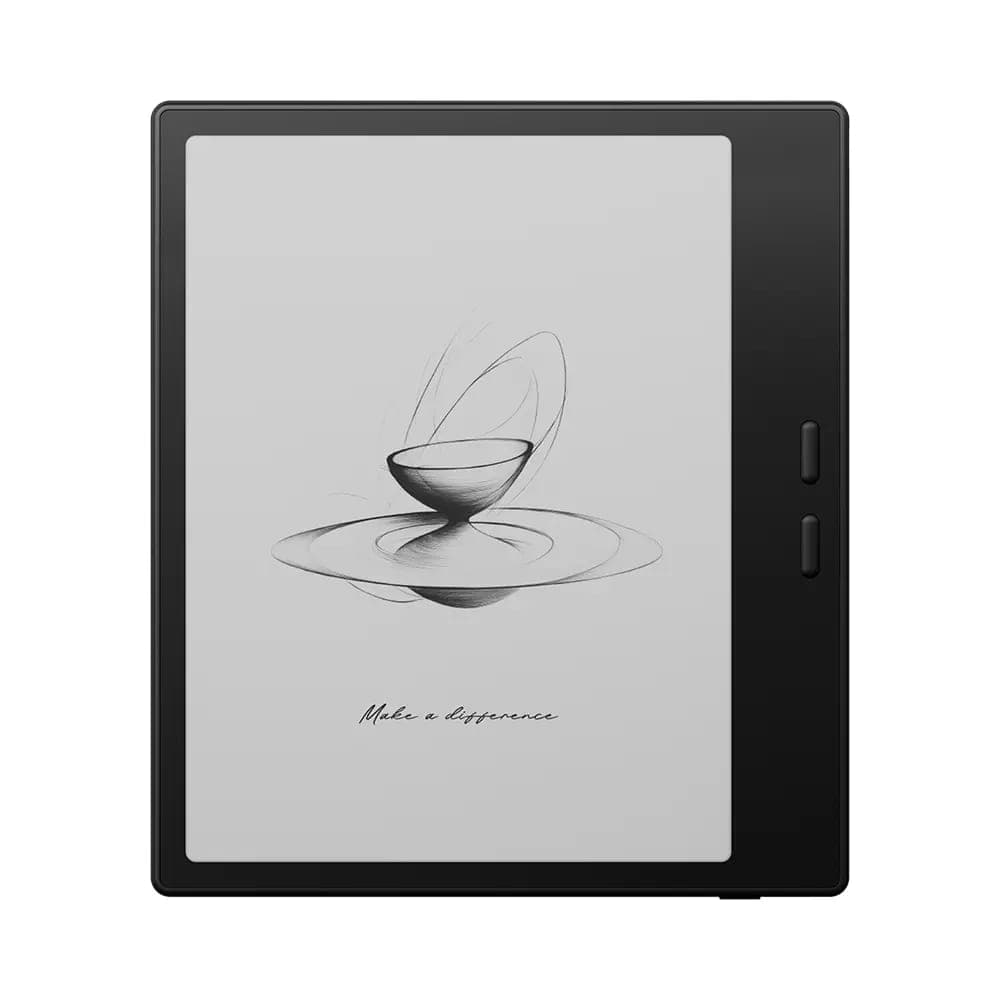 BOOX 7" Go 7 ( Black )$342.99
Try it with your own account
The quickest way to know whether this suits you is to sign into your own Kindle or Libby account on a device in our Oakville showroom and read a few pages of a book you own. We are happy for you to do exactly that before deciding anything.
Common questions
- Can I read my Kindle books on a BOOX?
- Yes. Install the Kindle Android app on the device and sign in, and your library appears exactly as it does on any other device. Amazon's DRM means those books stay inside the Kindle app rather than joining the BOOX library, but you can read them normally.
- Can I borrow library books on a BOOX?
- Yes. Libby works on a BOOX, so a Canadian public library card gets you loans directly on the device. Some titles can also be sent to Kindle format, which then opens in the Kindle app, though reading in Libby itself is usually simpler.
- Why does the Kindle app look bad on my BOOX until I change settings?
- Because it is drawn for a phone. Page-turn animations, dark themes and its default refresh behaviour all fight E Ink. Setting the app's refresh mode and contrast individually, and turning animations off inside the app, fixes almost all of it.
- Can I combine my Kindle, Kobo and personal books into one library?
- No, and this is the main compromise of using a BOOX with purchased books. DRM keeps each store's titles inside its own app. Only your own unprotected files, such as EPUBs and PDFs you own outright, appear in the BOOX library itself.
Related guides
Still stuck?
We are a Canadian BOOX dealer with a real showroom in Oakville. If a guide did not solve it, tell us what your device is doing and we will help you work out whether it is a setting or a fault.