
Tips & tricks
Readwise Reader on E Ink: The Perfect Home for Your Saved Articles
If you save articles all week and never quite get around to reading them, the problem is probably not the articles. It is the screen. A backlit phone surrounded by notifications is a terrible place to settle into a 4,000-word essay. Move that same reading queue to an E Ink device and it suddenly feels like sitting down with a well-edited magazine.
Because BOOX devices run full Android with access to the Google Play Store, the read-later apps you already use install like they would on any phone or tablet. Here is how to set them up properly.
Installing Readwise Reader and friends
Readwise Reader has become the favourite of serious article readers: it pulls in web articles, newsletters, RSS feeds, and PDFs, and syncs your highlights back to Readwise. Pocket and Instapaper remain excellent simpler options.
Setup on a BOOX device takes a few minutes:
- Enable Google Play in the settings the first time you use the device, then sign in with your Google account.
- Install the app from the Play Store, exactly as you would on a phone. Readwise Reader, Pocket, and Instapaper all have standard Android apps.
- Sign in once and let your queue sync. Most of these apps store articles offline, so your reading survives the subway tunnel and the flight.
Display settings that make articles shine
E Ink is a reflective, paper-like screen, so a few in-app choices matter more than they do on glowing glass:
- Use the light theme. Dark mode exists for screens that emit light. On E Ink, black text on a white page is exactly what the technology was built for, and it renders far more crisply.
- Bump the font size and line spacing a notch above what you use on your phone. E Ink at 300 ppi is sharp enough for small text, but generous spacing makes long sessions more comfortable.
- Turn off in-app animations where the app allows it. Page-style pagination suits e-paper better than smooth scrolling.
Tame the refresh mode
BOOX devices let you set a refresh mode per app. For read-later apps, a small adjustment makes a big difference: use the higher-quality refresh mode for reading, since it gives the cleanest text, and a faster mode only if you scroll through long lists often. If you notice faint afterimages while browsing your queue, trigger a full refresh or let the device do its scheduled full refresh. We cover why those afterimages happen in our explainer on ghosting and spots.
The scrolling habit is worth breaking anyway: tap the edges of the screen or use pagination inside the app and the whole experience feels like turning pages in print. That calmer rhythm is a big part of why e-paper helps with scrolling addiction.
Which BOOX device suits article reading?
Articles are mostly text, so you do not need a huge screen. Three devices stand out.
The Palma is the pick if your reading happens in stolen moments. It is phone-shaped, lives in a pocket, and its volume buttons turn pages one-handed.
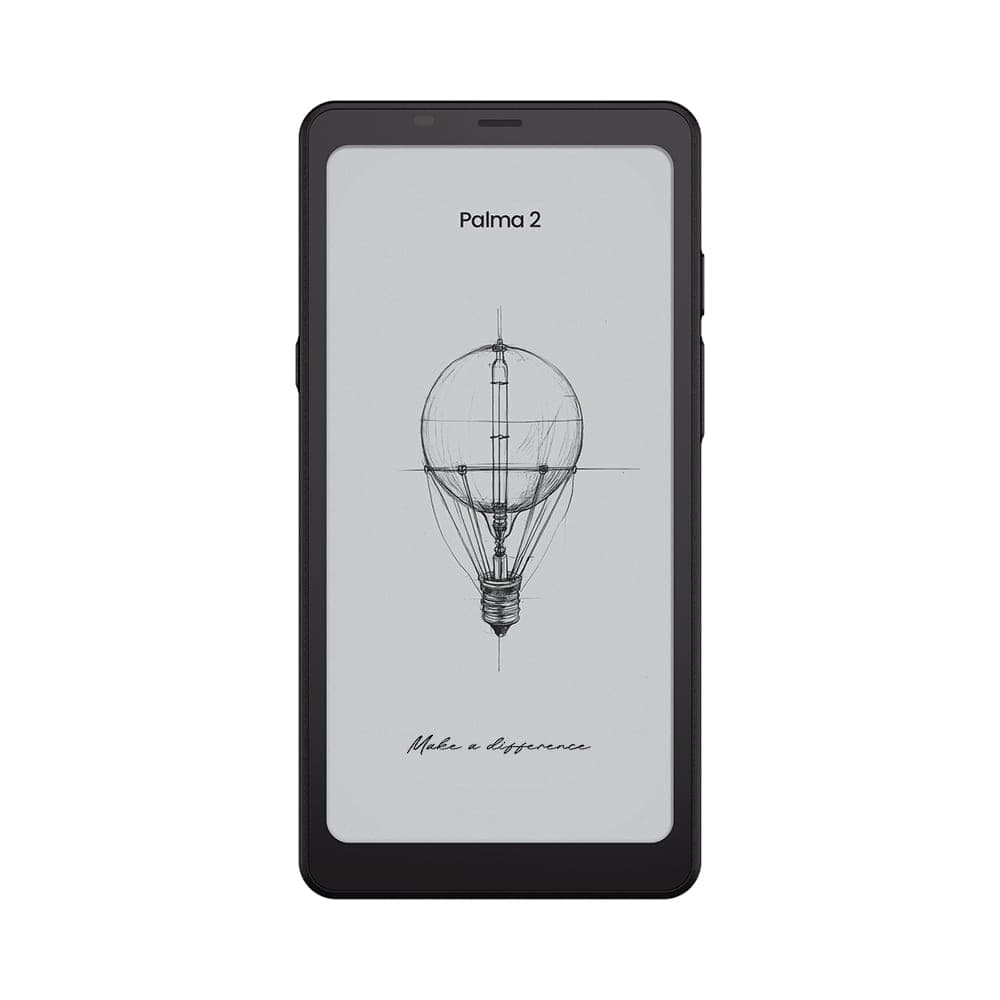 BOOX 6.13" Palma 2 - Black$349.99
The Go 7 is the sweet spot for dedicated reading sessions: a 7 inch, 300 ppi screen with page-turn buttons and a microSD slot, still light enough to hold in one hand for an evening.
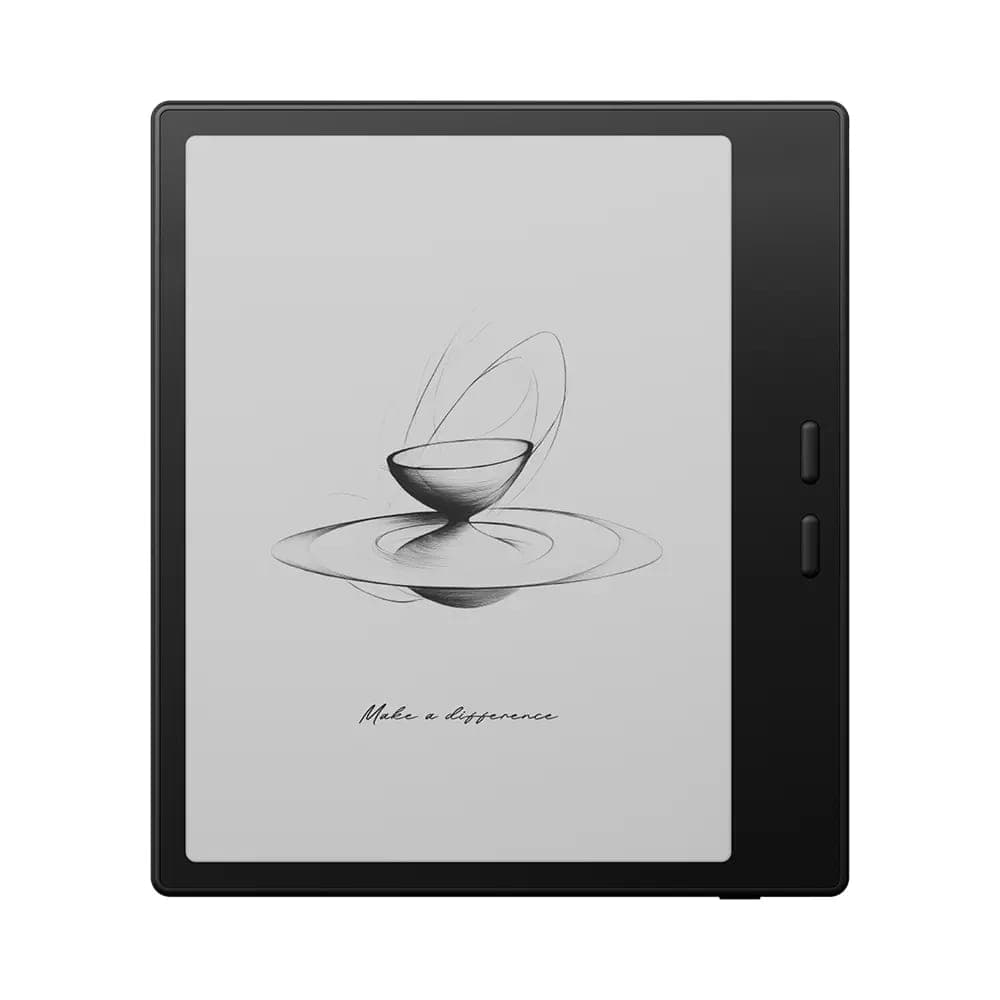 BOOX 7" Go 7 ( Black )$342.99
The Page offers a similar 7 inch format with page-turn buttons and a built-in speaker, a solid choice if you also listen to the occasional article or audiobook over Bluetooth or the speaker.
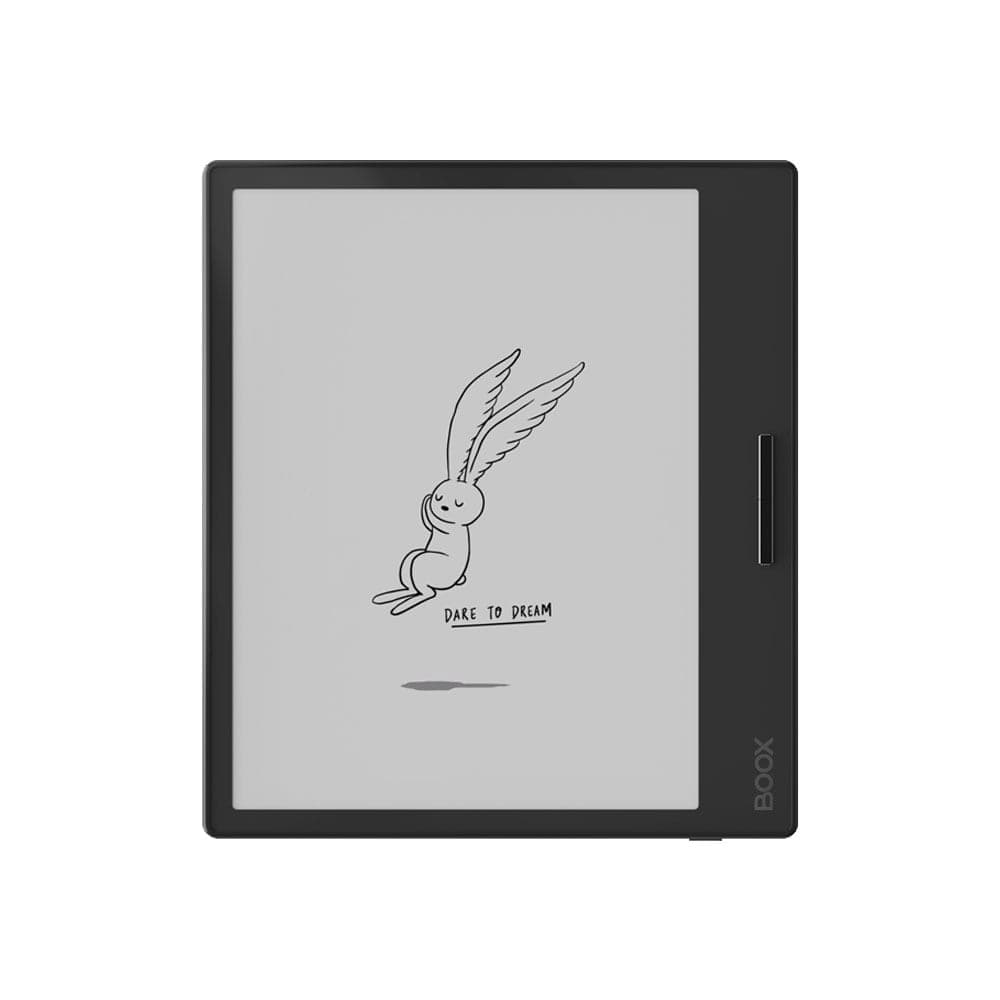 BOOX 7" Page$301.39
Try your reading queue on paper
Bring your Readwise, Pocket, or Instapaper account to our Oakville showroom, sign in on a demo unit, and read one of your own saved articles on E Ink before you decide. Or order online with free shipping across Canada and 30-day returns on new devices.