
Notes and writing
BOOX Stylus and Handwriting: Setup, Calibration and Getting Notes Out
Why your stylus writes offset from the nib, how to calibrate it, what to do when it stops responding, and how to export notes as PDF, image or searchable text.
Writing is where BOOX devices earn their price over a plain e-reader, and it is also where the most confusing problems show up. Here is what actually goes wrong and what to do about each.
The pen has no battery, and that matters
BOOX styluses work by electromagnetic resonance. The screen powers the pen through a magnetic field, and the pen resonates back. There is nothing to charge, no battery to replace, no pairing.
This is worth knowing because it changes what a dead pen means. When a stylus stops responding, it is not flat. Either the pen is damaged, the digitiser layer is at fault, or something is interfering. Charging it is not an option, and looking for a pairing menu is a waste of time.
Writing lands offset from the nib
Almost always calibration. The digitiser knows where the pen is; it just has a slightly wrong idea of how that maps to the screen.
Run the calibration routine in Settings. It shows a sequence of targets to tap with the pen.
The part people get wrong: hold the pen exactly as you normally write. If you calibrate holding it bolt upright, then write at a 45 degree angle, the offset comes straight back. Sit as you would to write, hold your usual grip, and tap the targets naturally.
A small offset near the edges of the screen is normal on every device of this type. Perfect edge-to-edge accuracy is not something E Ink digitisers deliver.
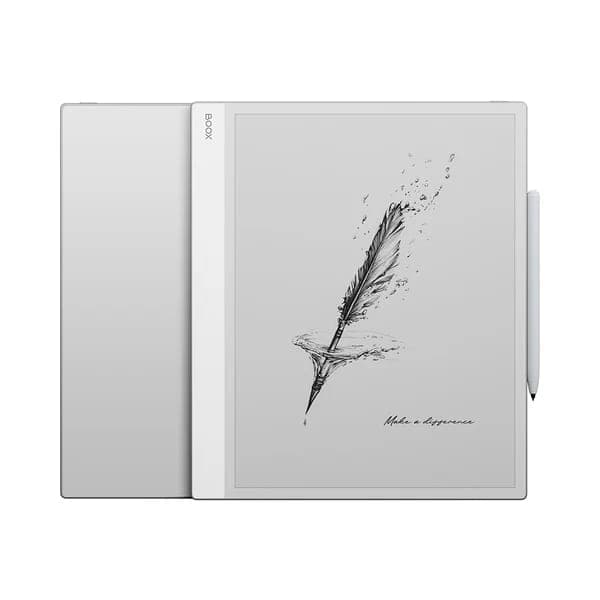 BOOX 13.3" Note Max$839.99
The stylus has stopped responding entirely
Work through these in order:
- Restart the device. The digitiser driver can hang like anything else. This fixes it more often than it should.
- Check the nib. A nib worn down to a stub, or one that has retracted into the barrel, stops making proper contact. Swap in a spare.
- Remove the case and any magnets. The pen works magnetically, so a magnetic case flap folded behind the device can genuinely interfere.
- Try a different pen if you have one. This immediately tells you whether the fault is the pen or the device.
- Test in a different app. If it writes in Notes but not elsewhere, the app is the problem, not the hardware.
If touch works but the pen does nothing anywhere, after all of the above, that points to the digitiser layer. That is a hardware fault, covered by the full manufacturer warranty on every new device we sell. Send us the details.
Palm rejection and the awkward angle
Palm rejection works by ignoring large contact areas while the pen is near the screen. It is good, not perfect.
If your hand keeps leaving marks, the usual cause is starting a stroke with your palm landing before the pen is close enough for the screen to notice it. Resting your hand as you bring the pen down, rather than after, usually fixes it.
Getting notes off the device
Four routes, depending on what you want at the other end:
- Export as PDF. The most faithful option, and the right one for anything you want to keep or send. Vector strokes stay crisp at any zoom.
- Export as PNG. Fine for dropping a single page into a message or a document.
- Convert to text. Handwriting recognition turns a page into editable text. Tidy printing converts well, fast cursive much less so. Treat it as a first draft rather than a transcript.
- Cloud sync. The Notes app can sync to Onyx's own cloud or to Dropbox, Google Drive and OneDrive, so notes appear on a computer without any manual export. Convenient, though a sync client running in the background has a battery cost, as our battery guide explains.
Templates and layers
The Notes app carries templates such as lined, grid, dotted, planner and music staves. Choose the template when you create a notebook, since changing it later is more awkward than picking correctly at the start.
Layers let you keep annotation separate from the underlying page, which matters when you are marking up an imported PDF and want the option to strip your notes back out later.
Which device suits writing
Screen size changes handwriting more than any setting does. A 10.3 inch device such as the Note Air5 C is close to a small notepad and suits most note-taking. The 13.3 inch Note Max is roughly A4, which is the size to want if you mark up full-page documents or draw at any scale.
Our comparison of the Note Air5 C and the Note Max goes through the trade-off in detail.
 BOOX Note Air5 C 10.3"$699.99
Try the pen before you buy
Writing feel is genuinely subjective, and no spec sheet conveys it. The friction of the nib, the weight of the pen and the lag all vary between models. Come to our Oakville showroom and write on a few before deciding.
Common questions
- Why does my BOOX stylus write in the wrong place?
- The digitiser needs calibrating. There is a calibration routine in Settings that asks you to tap a series of targets. Hold the pen the way you naturally write, at your usual angle, or you will calibrate for a grip you do not use.
- Does the BOOX stylus need charging or a battery?
- No. BOOX styluses use an electromagnetic resonance digitiser, so the pen draws power from the screen itself. There is nothing to charge and no battery to replace. A pen that has stopped working is not a flat pen.
- Can I turn my handwriting into typed text?
- Yes. The Notes app includes handwriting recognition that converts a page of writing into editable text. Accuracy depends heavily on how tidily you write, and it handles printed letters far better than rapid cursive.
- Do I need to replace the stylus nib?
- Eventually. Nibs wear down against the textured screen surface, faster if you press hard. A worn nib feels scratchy and can eventually mark the screen, so replace it once it looks visibly short or flattened. Spare nibs come with most pens.
Related guides
Still stuck?
We are a Canadian BOOX dealer with a real showroom in Oakville. If a guide did not solve it, tell us what your device is doing and we will help you work out whether it is a setting or a fault.