
Notes and writing
Annotating PDFs on a BOOX: A Working Method
Crop the margins, fix the contrast, then annotate. How to make dense PDFs readable on E Ink, keep notes on their own layer, and export marked-up files cleanly.
PDFs are where an E Ink tablet either earns its price or frustrates you daily. The difference is almost never the device. It is that most people open a PDF and start annotating without spending two minutes making it readable first.
Here is the order that works.
First, be honest about screen size
A PDF has a fixed layout. Unlike an EPUB, the text cannot reflow to fit a small screen without losing the layout that made it a PDF in the first place.
This makes screen size less a preference than a requirement:
- Under 10 inches: workable for reading text-heavy PDFs after cropping, painful for anything with figures or two columns.
- 10.3 inches: the practical minimum for comfortable annotation, and enough for most papers and reports.
- 13.3 inches: roughly A4. A page displays close to its intended size with room to write in the margin.
If marking up documents is the main reason you want a device, this is the specification to get right. Our Note Air5 C and Note Max comparison covers the trade-off, and the E Ink tablet explainer goes into why fixed layouts behave this way.
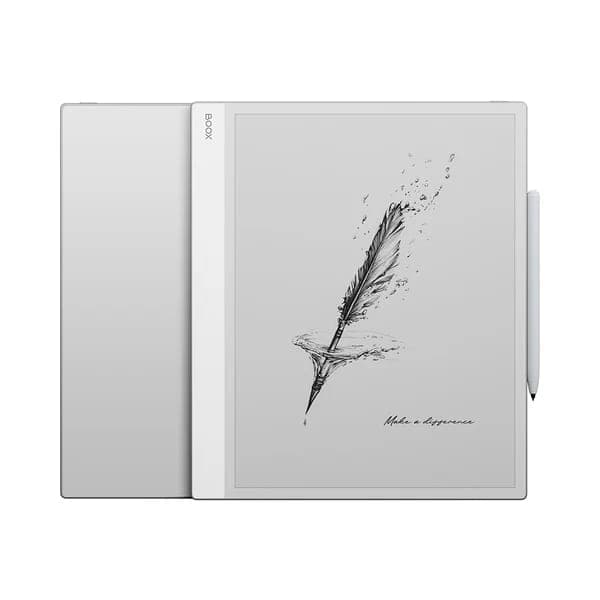 BOOX 13.3" Note Max$839.99
Step 1: Crop the margins
Do this before anything else. It is the highest-value two seconds in this guide.
Most PDFs, especially academic papers, carry generous whitespace built for print. The reader's crop or trim function cuts that surrounding margin so the actual content fills the screen. On a typical journal article this makes the text noticeably larger without any zooming.
Most readers offer both an automatic crop and a manual one where you drag the boundaries. The automatic version handles most documents. Use manual when a document has running headers you would rather cut too.
Step 2: Fix the contrast, especially for scans
A scanned PDF is a photograph of a page, and it usually arrives grey rather than black on white. On E Ink that reads as muddy.
The darkening and contrast controls sharpen exactly this. Push the contrast until the text goes properly black and the background properly white. It transforms scans of older books and photocopied handouts.
For a born-digital PDF that is already crisp, leave this alone.
Step 3: Keep your annotations on a layer
The reader distinguishes between the document and what you add to it. Keeping your marks on their own layer means you can hide them, export the clean original, or strip them out later.
This matters more than it sounds. A marked-up contract that you cannot un-mark is a problem. A marked-up paper whose highlights you can toggle off before sharing is not.
Step 4: Annotate
The toolset is what you would expect: pen in several weights, highlighter, eraser, shapes, and a text box for typed notes.
Two habits that pay off later:
- Use the highlighter for things you will want to find again, and the pen for thinking out loud. When you export an annotation summary, highlights come out as a clean list and freehand scribbles do not.
- Type notes you will need to read back. Your handwriting is faster now, but a typed note is searchable. The handwriting recognition can convert writing to text afterwards, though it prefers tidy printing to fast cursive.
Step 5: Get the marked-up document out
Three different things, and it is worth knowing which one you need:
- Export a flattened or merged PDF. Your annotations become part of the document and open correctly in any PDF app on any device. This is what you want when sending a marked-up document to someone else.
- Export an annotation summary. Just your highlights and notes with page references. Far more useful than the whole document when you are writing something up from your reading.
- Sync the notebook to cloud storage. Convenient for your own workflow across devices, but remember a background sync client has a battery cost, as our battery guide explains.
The trap: if you only ever sync the reader's own notes, your marks may live in the device's annotation layer rather than in the file. Someone opening that PDF elsewhere sees a clean document and wonders where your comments went. When it needs to travel, export deliberately.
Reflow mode, and its limits
Most readers offer a reflow mode that strips a PDF's layout and re-renders the text as flowing paragraphs, so it can resize like an EPUB.
On a single-column, text-only PDF this works well. On anything with two columns, figures, tables or equations it produces a scrambled mess, because it is guessing at reading order.
Try it on dense text documents on a smaller screen. Do not expect it to rescue a badly laid-out PDF on a device that is too small for it.
Split screen
On larger devices you can run the PDF and a notebook side by side, reading on one half and writing on the other. For working through a long document while building separate notes, this is more useful than annotating in the margins, and it is a genuine advantage of a 13.3 inch screen over a 10.3 inch one.
 BOOX Note Air5 C 10.3"$699.99
If a PDF will not open or renders badly
- Very large files load slowly. A several-hundred-megabyte scan will be sluggish on any E Ink device. Compressing it on a computer first helps more than any setting.
- Text looks thin and grey: contrast and darkening, as above.
- The document is a scan with no selectable text. Search and text export will not work until it has been through OCR. Some readers can do this on device; a computer does it faster.
- Password-protected files need the password each time and cannot be annotated in some readers.
Try it with your own documents
PDF annotation is genuinely hard to judge from a description, and screen size is the variable that matters most. Bring a document you actually work with to our Oakville showroom and try it on a 10.3 and a 13.3 inch device side by side. It usually settles the decision in a couple of minutes.
Common questions
- What screen size do I need to annotate PDFs comfortably?
- For full-page academic or business PDFs, 10.3 inches is the practical minimum and 13.3 inches is roughly A4, which means a page displays at close to its intended size with room in the margin to write. Below 10 inches you spend more time zooming and panning than reading.
- Can I remove the white margins from a PDF to make the text bigger?
- Yes, and it is the single most useful thing you can do. The reader has a crop or trim function that cuts the surrounding whitespace so the actual content fills the screen. On a document with generous margins this can be the difference between squinting and reading comfortably.
- Will my annotations show up when I open the PDF on a computer?
- If you export a flattened or merged copy, yes. Annotations become part of the document and open anywhere. If you only sync the reader's own notes, your marks may live in the device's annotation layer and not appear in other PDF apps, so export deliberately when you need to send something out.
- Can I get a list of just my highlights without the whole document?
- Yes. The reader can export an annotation summary containing your highlights and notes with their page references, which is far more useful than the full PDF when you are writing something up from your reading.
Related guides
Still stuck?
We are a Canadian BOOX dealer with a real showroom in Oakville. If a guide did not solve it, tell us what your device is doing and we will help you work out whether it is a setting or a fault.